Showing posts with label How-To. Show all posts

Rearrange your Google+ Circles

google-circlesGoogle+ users can now choose any order for their circles. The ability to reorder Google+ circles, was a feature widely requested by the Google+ users. Engineer , working on Google+ project explains that to rearrange you Google+ circles, all you have to do is to move to the Circles Tab and click and drag any of the circles to your desired location.

The best part of this new feature is that, once you rearrange your circles, you will notice the change on the list of circles on the left of your home page. This change will also be visible in the drop down menu, that appears when you are adding someone to your circles.

reorder-circles

This is a minor feature added by Google, but its good that Google is taking customer requests into account and adding features that are widely demanded by users.

Read more ...

Find Out Google Plus Posts Indexed by Google

google-indexedSearch operators are really helpful when your need to filter out results. Whether your want to search words or an exact phase of a blog post or a sentence on in the text field of a website or even find out how many of your blog posts have been indexed by Google you can always use operators.

Google+ apparently has no character limit for posts and people (particularly the  Geeks) are making use of it by writing content that is nothing short of a blog post.

This tip will let you find all of your Google Plus posts that have been indexed by Google. Simply type the following query in Google:

site:plus.google.com inurl:/Your Google+ Profile ID

google-plus-profile-id

You can search for posts in your (or anyone's) public stream by using the following query in Google :

site:plus.google.com inurl:/Your Google+ Profile ID/posts/* search terms

E.g. To find out posts in your stream about Google(If there’s any) type:

site:plus.google.com inurl:/Your Google+ Profile ID/posts/* google
----------------

For finding out all Google+ posts by Matt Cutts where he has mentioned about twitter you can use :

site:plus.google.com inurl:/109412257237874861202/posts/* twitter
----------------

You can also search every ones public posts by leaving the profile ID. This way:

site:plus.google.com inurl:/*/posts/* search terms

Credit: Arun Shroff
Read more ...

Fix The Slow Loading +1 (Plus One) Button

People have been rightly complaining about the Google “Plus One button loading too slow” problem. Google has been working to solve the problem since it got notified about the load time. plus-one

It has, on its end made a set of changes that will make the +1 button load 3x faster on your site and has also introduced a new async snippet that, once implemented, will also improve your page load time.

The announcement about the changes was made by software engineer—David Byttow on the official Google Webmaster Central blog who wrote that:

In addition to the improvements made to the button, we’re also introducing a new asynchronous snippet, allowing you to make the +1 experience even faster. The async snippet allows your web page to continue loading while your browser downloads the +1 JavaScript. By loading these elements in parallel, we’re ensuring the HTTP request to get the +1 button JavaScript doesn’t lead to an increase in your page load time.”

If you have already implemented the button, you need to update the code to the new async snippet to see an overall improvement in your page load time.

Use the +1 Configuration Tool and generate the new snippet.

generate-plusone-code

Read more ...

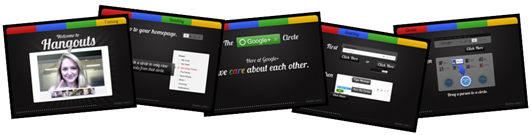
Graphical Guide To Google Plus

For many, Google+ is a pretty simple concept, while for others it’s a bit hard to grasp. Unlike Facebook, there are no friend requests. There are people who add you to their circles and people who you add to your circles, a twitter-like concept. You can categorize people by adding them to circles of your choice.

Forty Nine graphics put together by Saidur (Cy) Hossain, a UX Designer & Developer provide an easy explain of what Google+ is all about.

google-plus-photo

The guide is available in several languages and you can also translate it in your own language by visiting this link: http://goo.gl/zWRVU

Read more ...

Add a Follow Me On Google Plus Widget to Blogger, WordPress or Website

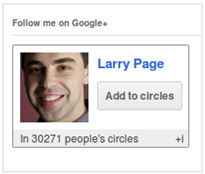
Scriptrr adds a widget to your blog or website that you can use invite visitors to your Google+ profile. Is offers customization of color and width. You can also choose to display all your other social profiles that you have defined on your Google Plus profile. It shows the number of people that have you in circles, your profile picture and a link to your Google Plus Profile.

Add Follow Me on Google+ widget to Blogger

To add the widget to your blogger blog visit scriptrr and add your profile ID and customize as required. Click the ‘Generate Widget’ button and copy the newly created JavaScript code.
Then  Simply add a new HTML/Java Script widget and paste the code. You’re Done!

Add Follow Me on Google+ widget to WordPressscriptrr

For adding Scriptrr to WordPress, follow the following steps (sourced from the official link):
  1. Download Scriptrr Google + Profile widget.
  2. Extract and upload scriptrr_google_plus_profile_widget.php to the plugins/ directory.
  3. Enable Scriptrr Google + Profile Widget in the Plugin admin panel.
  4. Place Scriptrr Google + Profile in the sidebar, and edit it to enter the Google + Profile plugin.

googleCards: A “Follow Me On Google+” plugin for wordpress

googleCards is similar to scriptrr. The plugin is for WordPress blogs and lets you invite people to your Google+ profile so that they can add you to their circles. The interface is simple and neat. It adds a widget that displays your profile picture alongside a link to your Google+ profile which people can click to view and join your circles. It also shows that the total number of people who have you in circles.

follow-me-g-plus
Read more ...

Find out where to hangout on Google Plus

Like Google Stated-- Hangouts are the best way for you to say, “I’m online and want to hangout!”. Google Plus provides a great platform for you to use video chat to coordinate plans, have meetings, chat with your friends and family and even have discussion with people on a topic. Although, on your Google+ stream you can see If someone in your circles has announced to hangout, but If you wish to find some publicly announced hangout schedule where you can have a discussion on your topic of interest, or just to have fun, here’s where your should be looking for.

gphangouts.com is a search and setup hangout directory that lists publicly announced Google+ hangouts. You can see where the topic of discussion, the users profile who has announced the event and of course when the discussion or just chit chat for fun will take place.

google-plus-public-hangouts

If you wish to talk on a topic that’s not listed, you can even start your own hangout plan by filling in the form at the end of the page. Simply enter your Name, profile URL, discussion time and the topic of discussion.

hangout-form

Read more ...

See Your Google Plus Stream On Your Blog or Website

google-plus-streamNow you can view your Google Plus stream on your blog or website. The widget is fully customizable. You can adjust the dimensions and also change the text, link and background colors of posts, shell and the scroll bar to match properly with your blog or website’s color scheme.
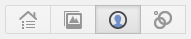
To place the code on your website, simply head to your Google+ profile and click the profile button.

plus-profile

Copy your profile’s ID from your browser’s address bar.

google-plus-profile-id

Now head straight to the widget site and enter your profile ID. Customize the appearance or dimensions as required.

Once your are done just grab the code and place it wherever you desire your stream to appear on your blog or website.

Read more ...

Find People On Plus offers Advance Searching of Google Plus Profiles

Google Profiles are tied into Google Plus. You can use the search bar on the top of your Google Profile or Google Plus account to search for people regardless of whether you have them in your circles or not them or not.
 
 
find_people_on_plusFind people on plus is an online directory of Google Plus users that lets you search for people using their Names, Profession and Location. Currently, the site has close to a million users indexed in its database. Its reads various information from user profiles that includes their occupation, interests, location, gender, relationships, number of followers and also whether they have a Facebook or twitter account or not.


Google+ Statistics Report:
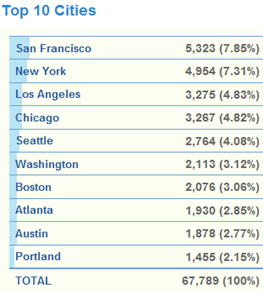
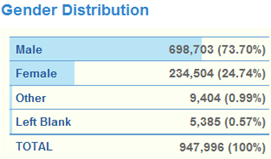
Apart from indexing and offering advance profile search capabilities, the site also provides an insight into how the current user base of Google+ looks like. Based on the sampling of the currently indexed profiles, the statistics section lists the following trends:

top-10-countriestop-10-cities


top-10-occupations-google-plusgoogle-plus-gender
looking-for-love


map-google-plus-users

Read more ...

More Google Plus Keyboard Shortcuts with Goo plus manager

Keyboard shortcuts are a great way to save time. Instead of finding a menu or an option, you just press a combination of keys. Google+ already has a few built-in shortcuts which you can use to navigate through the Google+ interface.

Read more ...

Sending Private or Direct Messages in Google Plus

When you are sending a message on Google+ , you can specify exactly who you want to send the message to by specifying specific circles or people. While Facebook & Twitter have a separate section for sending private messages, Google+ uses a different approach for private messages.

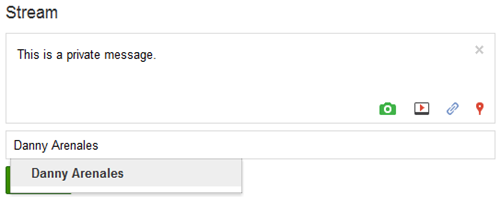
If you wish to send a private message to one of your friends just go to the “Home” page and under stream, type the message into the text box and the recipient’s name in the name selection bar.


Send a Private Message in Google+

  1. Compose a message that you wish to send by clicking the ‘Share what’s new…’ option under Stream. 
    Once done, simply enter the person’s name to whom you want to send the message. You can even type his email address if you wish to send the message as an email.


    stream
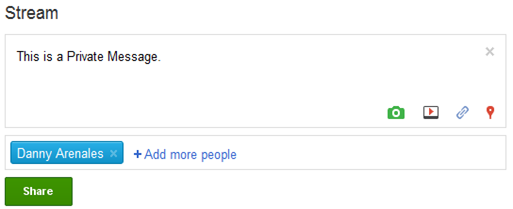
  2. If you want to send a private message to more than one person, simply enter their names in the name selection box. When you are done, the name bar will look like this.


    name-selected
  3. Once you’ve completed selecting the names of your friends to whom you are selecting the message. Click “Share”.
    The message update will be updated on your stream and will be visible to only the person or people whose name you mentioned.

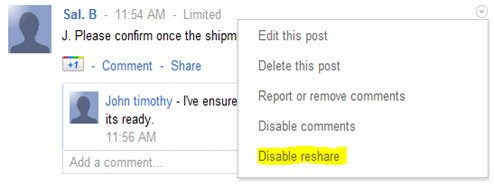
Once the stream is updated, you can prevent your friend from re-sharing the post within his circles by choosing “Disable Reshare” from the dropdown menu.

disable-reshare

Read more ...